Recovering Data From a Liquid-Damaged 16-Inch MacBook Pro
By Eric Grippo, LapFix
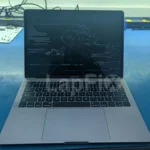
This 16-inch MacBook Pro came to us after a liquid spill near the upper part of the computer. The Mac was no longer usable, and by the time we received it, the owner had already moved on to a newer Apple Silicon MacBook.
Replacing the computer was not really the problem. The important part was what was still stored on the old Mac.
The customer needed the data, so before doing anything else, we had to find out how badly the liquid had affected the logic board and whether we could get the Mac running reliably enough to access its internal storage.
Opening the MacBook and Inspecting the Logic Board
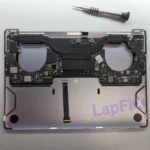
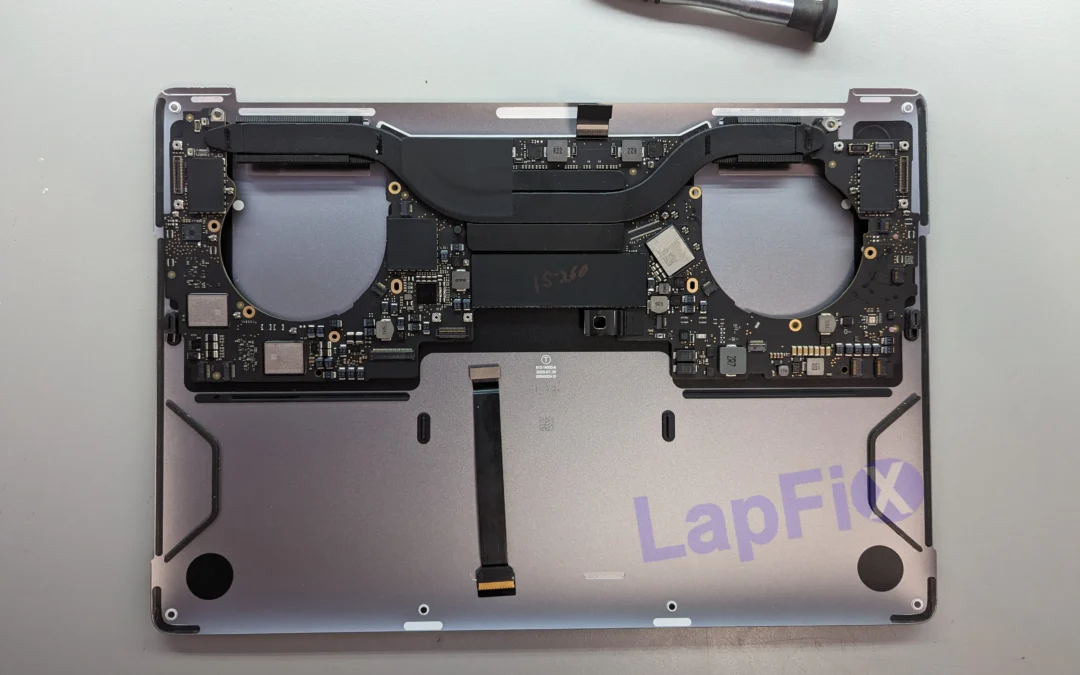
After removing the bottom cover, we could immediately see evidence of the spill. There was sticky liquid residue around the heatsink and close to the display connector. That showed us roughly where the liquid had traveled, but the visible residue does not always tell us which component is actually preventing the computer from working. We removed the logic board and continued the inspection under a microscope. There was contamination around the Touch Bar and lid-angle-sensor area, including corrosion on several connector pins. We cleaned the affected pins and checked the nearby components before moving farther across the board. The more serious damage appeared near the USB-C power circuitry. Close to the CD3217B12 USB-C controller, we found a capacitor that had been badly damaged. This was not simply residue sitting on top of the board. The component itself had failed. Working in this area requires care. The components are extremely small and packed closely together. Too much heat while removing one damaged part can easily disturb another component next to it or damage the board.Repairing the Damaged USB-C Circuit
We cleaned the affected section of the board, removed the damaged component and completed the necessary microsoldering work. Afterward, we inspected the surrounding circuitry again to make sure nothing had shifted and that there was no additional damage severe enough to stop us from moving on to a power test. The logic board went back into the MacBook, and we connected a USB-C power supply through a power meter. This is one of the points in a repair where the USB-C power negotiation tells us quite a bit. The Mac negotiated normally to about 20 volts. A short time later, the battery-charging symbol appeared on the screen. Then we got an Apple logo. The MacBook booted into macOS, and we were able to log in. For this job, that was the result we needed. The logic-board repair was mainly a way to regain access to the customer’s files.Transferring the Data From the MacBook
Once the Mac was running steadily, we connected an external drive and began transferring the customer’s data. We kept the computer powered during the transfer and checked the copied files from the external drive afterward. The customer had already replaced the MacBook, so returning the old computer to everyday use was not the priority. What mattered was getting the information off the built-in storage while the original board was working.Why Getting the Original MacBook to Boot Matters
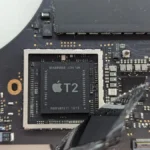
This repair shows why data recovery from a modern MacBook can be very different from recovery from an older laptop. With a computer that uses a removable hard drive or SSD, a technician may be able to take out the drive and read it separately. On this 16-inch MacBook Pro, the storage is built into the logic board and protected by Apple’s T2 security hardware. We cannot simply remove an SSD and connect it to another computer. That means a dead MacBook does not always have a dead storage system. The failure may be in the charging circuit, power circuitry or another section of the logic board. If the storage, processor and T2 hardware are still intact, repairing the original board may bring the Mac back to a condition where the data can be accessed. That is what happened with this machine. The spill caused real board-level damage, but it had not destroyed the customer’s data. After repairing the failed circuit, the Mac booted normally and we were able to copy the files to an external drive. For more information about why the original hardware matters, see our explanation of the Mac T2 chip, encryption and data recovery after liquid damage.What to Do After a MacBook Liquid Spill
If the data is important, avoid repeatedly trying to power on or charge the Mac after a significant spill. Liquid damage does not stop changing the moment the spill happens. Residue and corrosion can remain on the board even after the outside looks dry, and applying power to contaminated circuitry can turn a repairable problem into more extensive electrical damage.If the Mac is already off, leave it off and disconnect the charger. Do not keep testing the USB-C ports, and do not use rice, a hair dryer or cleaning spray inside the computer.